
- October 24, 2026
10 Google Search Operators Every SEO Professional Should Know
Share with Friends :

Table of Contents
Ask anyone who does SEO for a living and they’ll tell you much of their research starts in a plain Google search box. No fancy dashboard, no subscription. Just a few odd-looking symbols typed in front of a keyword. Those symbols are called search operators, and once you’re comfortable with them, you stop scrolling endlessly and start finding things on purpose.
They’re one of the most underrated skills for anyone new to digital marketing. At Digi Uprise, a digital marketing institute in Delhi, students pick this up early because it costs nothing to practise and the payoff is immediate. You type, you see the difference, and it clicks.
This guide covers ten Google search operators, explains what each one does, and shows how to use them in day-to-day SEO work, from keyword research and competitor analysis to content discovery and indexing checks.
What Are Google Search Operators?
Search operators are small commands or symbols you add to a query to control what Google shows you. You can force an exact phrase, stay inside one website, ask for a certain file format, or hide words you’re tired of seeing. Google’s official documentation on Google Search operators explains how these operators can help refine searches and investigate search results.
A quick comparison makes it obvious. Searching SEO tools gives you a broad mix of results. Searching site:ahrefs.com SEO tools narrows the results to relevant pages from Ahrefs. The same topic, but a more focused search.
SEO people lean on this for keyword research, competitor checks, content planning, and hunting down sources. One honest warning, though. Operators are shortcuts. They don’t replace proper SEO tools and software, and Google never promises you’re seeing the full picture.
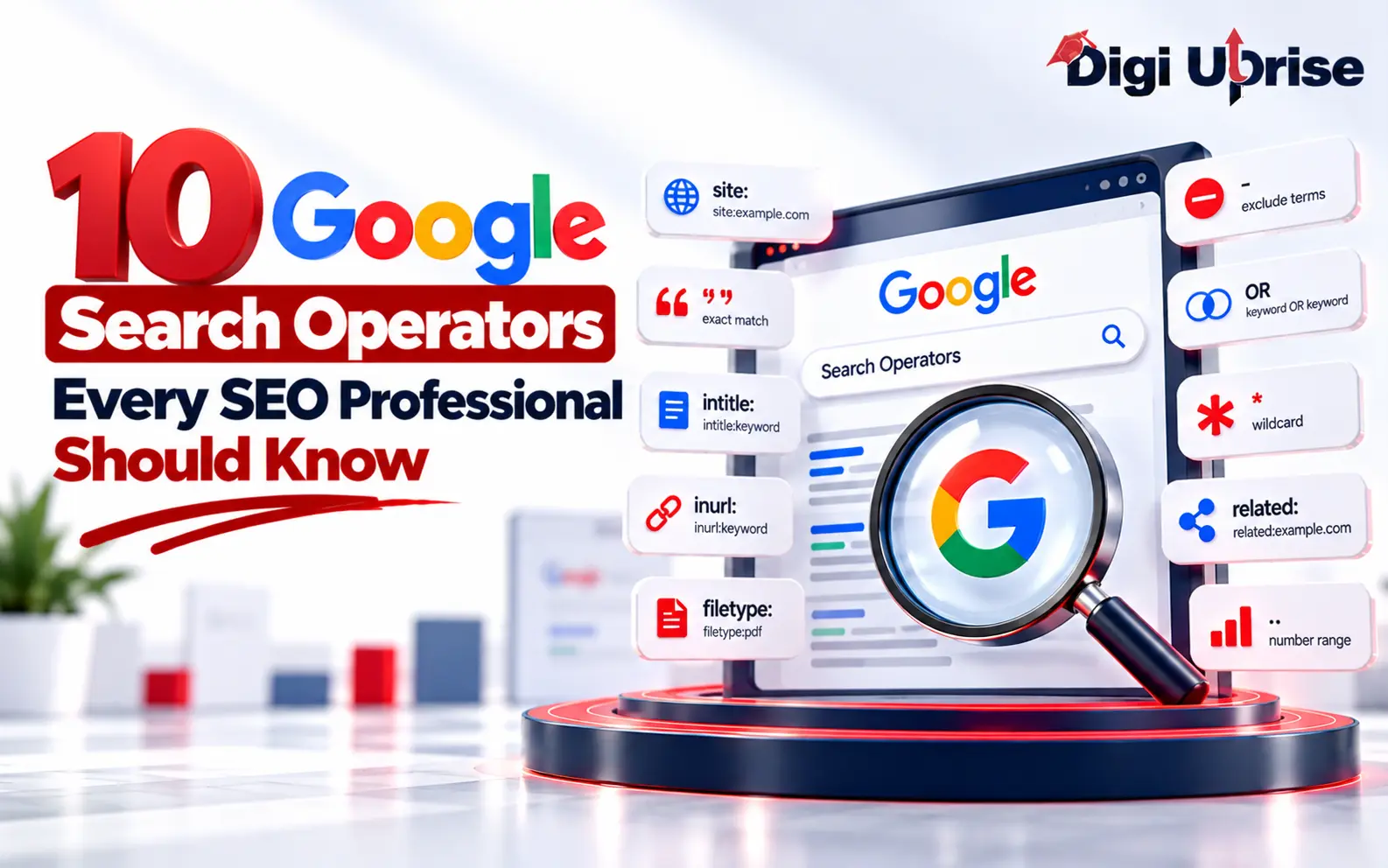
10 Google Search Operators for SEO
1. Exact Phrase Search (” “)
Put quotation marks around a few words and Google looks for them together, in that order.
Example: “on-page SEO checklist”
It’s great for seeing how a topic gets discussed across the web. You can also paste a distinctive sentence from your own article and see where else it appears. Just don’t treat that as proof of copying. A search can’t tell you who wrote something first.
2. Site-Specific Search (site:)
This keeps results inside one website or domain.
Example: site:ahrefs.com keyword research
Competitor research gets easier with this one. You can see what they’ve published, which blog topics they’ve already covered, and what Google chooses to display. Try it on your own domain too, like site:yourwebsite.com digital marketing. Remember the list is approximate, because Google doesn’t hand over every indexed URL.
3. Title Search (intitle:)
It finds pages with your chosen word or phrase in the title.
Example: intitle:”backlink strategy”
Run it before writing a post and you’ll quickly see who’s already targeting that topic and how they word their headlines. Sometimes you’ll spot a gap nobody has filled. It won’t tell you how hard a keyword is to rank for, so don’t use it as a difficulty score.
4. URL Search (inurl:)
Same idea, but it checks the web address instead of the title.
Example: inurl:seo-tools
It’s useful for studying how sites organise their URLs and for spotting resource pages. You can combine it with a domain: site:example.com inurl:blog SEO.
5. File Type Search (filetype:)
This surfaces indexed documents in a particular format.
Example: filetype:pdf SEO guide
PDFs, reports, and presentations are the usual finds, which helps when a blog post needs real evidence behind it. Check who published the file, when, and how the data was collected before you quote any of it. Old numbers travel a long way online.
6. Either/Or Search (OR)
OR lets one query cover two alternative terms.
Example: “SEO tools” OR “keyword tools”
Write it in capitals so Google reads it as a command. It helps when different people use different words for the same thing. The catch is that a wider search brings in more noise, so read the results with a little suspicion.
7. Exclude Terms (-)
A minus sign right before a word tells Google to leave it out.
Example: link building -Reddit
Say your results are full of job listings when you want learning material. Searching SEO courses -jobs can thin them out. It isn’t perfect, so skim what comes back instead of assuming everything unwanted is gone.
8. Before a Date (before:)
The before: operator helps you find search results published before a specified date. It’s useful when researching older SEO strategies, historical industry updates, or previous versions of a topic.
Example: SEO trends before:2025-01-01
Use this operator when you want to narrow your research to older material. However, Google may not always identify publication dates accurately, so check the date and context on the original page before relying on a result.
9. After a Date (after:)
The after: operator helps you find search results published after a specified date. It can be useful when researching recent SEO developments, updated marketing practices, or changes in search engine optimization.
Example: Google SEO updates after:2025-01-01
Use it to narrow your search to newer material, but verify publication or update dates on the original pages because date filtering may not be exact.
10. Wildcard Search (*)
Inside quotes, an asterisk can stand in for a missing word.
Example: “best * tools for SEO”
It’s a nice brainstorming aid for headline patterns and for seeing the different ways people phrase an idea. It isn’t a magic fill-in-the-blank button, and results can vary from search to search.
How to Use Google Search Operators for SEO
Keyword Research and Topic Discovery
Mix exact phrases, OR, and wildcards to explore wording and collect ideas. Then move to a keyword tool to check search volume, competition, and search intent. Operators help you find ideas. Tools help you decide which ones deserve your time.
Competitor Content Analysis
Pair site: with intitle: to see what a rival covers and how they package it. Put your own content next to it. The differences usually show where you have work to do.
Finding Guest Posting Opportunities
Searches like “write for us” digital marketing or “guest post guidelines” SEO can point you to sites that accept outside contributors. Before you pitch, look at whether the site fits your niche, how strict its editing seems, and whether it has a decent reputation.
Content and Indexing Checks
A quick site:yourwebsite.com gives you a rough view of what Google displays for your domain. For anything you need to be sure about, open Google Search Console. Its URL inspection and indexing reports were built for that job.
Finding Research Documents
Add filetype:pdf to a topic and you’ll often land on studies and industry reports. Confirm the publisher and check whether the research is original before you cite it.
At Digi Uprise, a digital marketing institute in Delhi, exercises like these show students how working SEO people actually investigate topics, study websites, and plan content. Practising on live searches makes the link between research and everyday marketing decisions much easier to see.
Limitations of Google Search Operators
Operators are handy, but they will mislead you if you trust them too much. Here is where they tend to let people down:
- A few of them no longer work, and others behave differently from one week to the next. Google doesn’t announce most of these changes, so you often find out by getting strange results.
- Two people running the same query can see different pages, depending on where they are, which language they use, and even small differences in wording.
- A site: search is only a sample. If you count the results and report that number as a site’s indexed pages, you’ll probably be wrong.
- They don’t do what Google Search Console or a crawler like Screaming Frog does. Those tools read your actual site data, while operators only show you what Google chooses to display.
- A page ranking well in the results tells you nothing certain about its authority, whether it’s indexed, or the quality of its backlinks and off-page SEO.
So use operators to get started and to find leads. When a finding affects a decision, such as what to write next or what to fix on a client’s site, confirm it with a proper tool first.
Google Search Operators Cheat Sheet
Operator | Main purpose | Example |
” “ | Exact phrase search | “SEO checklist” |
site: | Search within a website | site:ahrefs.com SEO |
intitle: | Search for a term in titles | intitle:backlinks |
inurl: | Search for a term in URLs | inurl:SEO-tools |
filetype: | Find particular file formats | filetype:pdf SEO |
OR | Search for alternatives | SEO OR SEM |
– | Exclude a term | SEO -jobs |
before: | Find results dated before a specified date | SEO trends before:2025-01-01 |
after: | Find results dated after a specified date | SEO updates after:2025-01-01 |
* | Phrase placeholder in certain searches | “best * tools” |
Conclusion
The nice thing about search operators is that you don’t need a budget or a login to use them. You need a clear question and a minute or two of typing. Whether you’re sizing up a competitor’s blog, looking for a report worth citing, or testing how people word a topic, the right command gets you there faster than scrolling ever will.
If you’re just starting out, don’t try to memorise all ten. Pick up site:, intitle:, inurl:, quotation marks, and filetype: first, since those cover most everyday tasks. Use them for a week on real projects, then add the others as you need them. Keep keyword tools and Search Console open alongside, and get into the habit of checking anything that looks too good to be true.
Regular practice matters more than reading about it. Digi Uprise, a digital marketing institute in Delhi, is a name worth knowing if you want guided, hands-on learning in digital marketing.
Frequently Asked Questions
1. What are Google Search Operators in SEO?
Think of them as shortcuts for the search bar. Instead of typing a question and hoping for the best, you add a symbol or a short command like site: and Google narrows things down for you. SEO people use them constantly to peek at a competitor’s blog, collect content ideas, or find a PDF report that a normal search would bury on page six.
2. Which Google search operator is most useful for SEO?
If I had to pick one, it would be site:. You’ll reach for it almost daily, whether you’re looking at your own site, a client’s, or a rival’s. After that it depends on the task. Use intitle: when you’re studying headlines, inurl: when you’re curious about site structure, and filetype: when you need reports.
3. How do I find indexed pages on a website using Google?
Type site:example.com into Google, with the domain you want to check, and hit enter. You’ll see the pages Google connects to that site. Don’t count them and call the number a total, though, because it’s only a rough estimate. If the site is yours, the indexing reports in Google Search Console will give you the real answer.
4. Can Google Search Operators help with keyword research?
A little, mostly at the beginning. Put a phrase in quotes, add OR to try variations, and use intitle: to see who has already written about the topic. That shows you how people word things. What you won’t get is search volume or competition data, so open a keyword tool for those.
5. Are all Google Search Operators still working?
Not all Google search operators work consistently, and some older operators have been discontinued. The ten operators covered in this guide are useful for refining searches, but results may vary depending on Google’s interpretation of a query. For important SEO decisions, verify your findings with Google Search Console or a reliable SEO tool.